

Overview
This guide demonstrates how to start call in to an Android application. Before you begin, we strongly recommend you read the calling setup guide.Add Multiple Calls Event Listeners
For every activity or fragment you wish to receive call listeners, you need to register the CallsEventListeners using theaddCallsEventListeners() method.
- Java
- Kotlin
Generate Call Token
Before start call session you have to generate call token. You need to call this method for call token.- Java
- Kotlin
Start Call Session
The most important class that will be used in the implementation is theCallSettings class. This class allows you to set the various parameters for the call/conference. In order to set the various parameters of the CallSettings class, you need to use the CallSettingsBuilder class. Below are the various options available with the CallSettings class.
CallSettingsBuilder class takes the 2 mandatory parameters as a part of the constructor:
- Context of the application
- An object of the RelativeLayout. The calling UI will be loaded in this relative layout provided.
CallSettingsBuilder to set the session Id of the call.
A basic example of how to start a direct call:
- Java
- Kotlin
setAudioOnlyCall() method allows you to set if the call is supposed to be an audio call or an audio-video call. If set to true, the call will be an audio-only call else when set to false the call will be an audio-video call. The default will is false, so if not set, the call will be an audio-video call.
The
CometChatCallsEventsListener listener provides you with the below callback methods:
End Call Session
To release the acquired calling resource and end the call, the end call session must be called.For Default Call
You only need to call the end call method of the chat SDK for default calling flows. Direct calling flows do not require it.
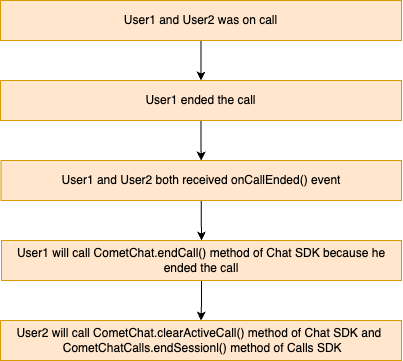
CometChat.endCall() method, which belongs to the CometChat Chat SDK, and the CometChatCalls.endSession() method, which belongs to the CometChat Calls SDK.
The user who pressed the end call button will call the CometChat.endCall() method, and the another user how was on call will call the two methods which is CometChat.clearActiveCall() and CometChatCalls.endSession() methods to release the calling resources
- Java
- Kotlin
- Java
- Kotlin
For Direct Call
- Java
- Kotlin
Settings
TheCallSettings class is the most important class when it comes to the implementation of the Calling feature. This is the class that allows you to customize the overall calling experience. The properties for the call/conference can be set using the CallSettingsBuilder class. This will eventually give you and object of the CallSettings class which you can pass to the startCall() method to start the call.
The mandatory parameters that are required to be present for any call/conference to work are:
- Context - context of the activity/application
- RelativeLayout - A RelativeLayout object in which the calling UI is loaded.
- sessionId - The unique session Id for the call/conference session.
In case you wish to achieve a completely customized UI for the Calling experience, you can do so by embedding default android buttons to the screen as per your requirement and then use the below methods to achieve different functionalities for the embedded buttons.
For the use case where you wish to align your own custom buttons and not use the default layout provided CometChat you can embed the buttons in your layout and use the below methods to perform the corresponding operations:
Switch Camera
You can callswitchCamera() Method to toggle between camera sources.
- Java
- Kotlin
Mute Audio
You can callmuteAudio() Method to mute your Audio Stream to the end-user.
- Java
- Kotlin
true the Audio Stream is muted and if set tofalse Audio Stream is transmitted.
Pause Video
You can callpauseVideo() Method to pause Video Stream to the end-user.
- Java
- Kotlin
true the Video Stream is muted and if set to false Video Stream is transmitted.
Set Audio Mode
You can callsetAudioMode() to set the output of the audio stream.
- Java
- Kotlin
CometChatCallsConstants.AUDIO_MODE_SPEAKERCometChatCallsConstants.AUDIO_MODE_EARPIECECometChatCallsConstants.AUDIO_MODE_BLUETOOTHCometChatCallsConstants.AUDIO_MODE_HEADPHONES
Enter PIP Mode
If you are using a PIP (Picture-In-Picture) mode in your app and you want to render calling view in PIP then you can callenterPIPMode() method.
- Java
- Kotlin
Exit PIP Mode
You can callexitPIPMode() to enter in PIP mode.
- Java
- Kotlin
Switch To Video Call
You can use theswitchToVideoCall() method to switch from audio call to video call.
- Java
- Kotlin
Start Recording
You can call startRecording() to start the recording- Java
- Kotlin
Stop Recording
You can call stopRecording() to stop the recording- Java
- Kotlin
End Call
You can call CometChatCalls.endSession() to end the call- Java
- Kotlin
Clear Active Call
You can call CometChat.clearActiveCall() to clear the call current call reference- Java
- Kotlin
Calling Notification
Get the incoming and missed calls notification through firebase FCM notification. To know more about it click here