


Tip: You can fork the sandbox, insert your CometChat credentials (App ID, Region, Auth Key.) in the code, and immediately preview how the UI and messages respond in real time.
User Interface Preview
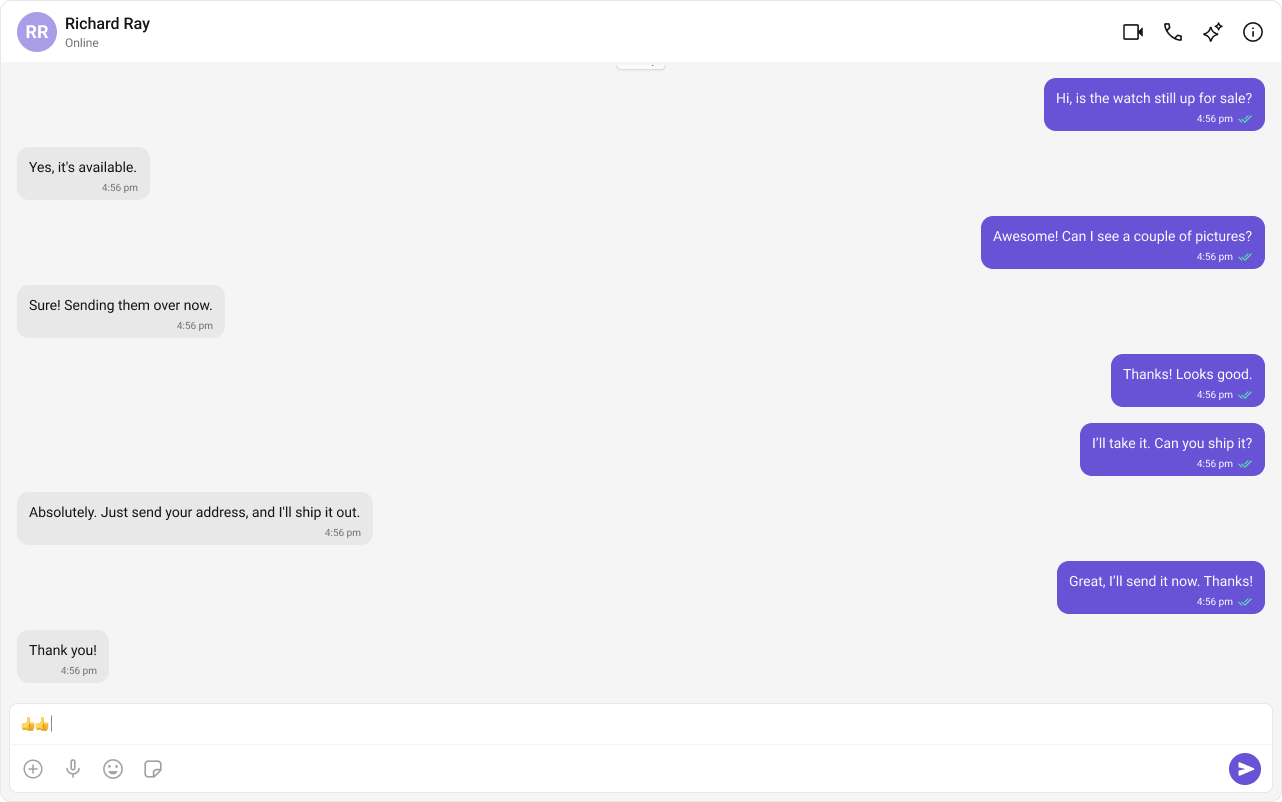
Key Components
- Chat Header – Displays recipient details and optional call/video call buttons.
- Message View – Shows real-time chat history.
- Message Input Box – Enables users to send messages, media, and reactions.
Step-by-Step Guide
Step 1: Implement the Chat Header
- Display profile picture, name, and online status.
- Add voice and video call buttons (optional).
Step 2: Build the Message View
- Load chat history and real-time messages.
- Ensure smooth scrolling and timestamp visibility.
Step 3: Add the Message Composer
- Include a text input field.
- Support media uploads, file attachments, emojis, and reactions.
Implementation
Now we will create theCometChatNoSSR.tsx & CometChatNoSSR.css files. Here, we will initialize the CometChat UI Kit, log in a user, and build the messaging experience using CometChatMessageHeader, CometChatMessageList, and CometChatMessageComposer components.
- TypeScript
- CSS
CometChatNoSSR.tsx
Fetching a User (One-on-One Chat)
Fetching a Group (Group Chat)
Step 4: Disabling SSR for CometChatNoSSR.tsx in Next.js
In this update, we will disable Server-Side Rendering (SSR) for CometChatNoSSR.tsx while keeping the rest of the application’s SSR functionality intact. This ensures that the CometChat UI Kit components load only on the client-side, preventing SSR-related issues.
Disabling SSR in index.tsx
Modify your index.tsx file to dynamically import the CometChatNoSSR.tsx component with { ssr: false }.
index.tsx
Why disable SSR?
- The CometChat UI Kit depends on browser APIs (window, document, WebSockets).
- Next.js pre-renders components on the server, which can cause errors with browser-specific features.
- By setting
{ ssr: false }, we ensure that CometChatNoSSR.tsx only loads on the client.
Step 5: Update Global CSS
Next, add the following styles to global.css to ensure CometChat UI Kit is properly styled.global.css
Step 6: Run the project
Next Steps
Enhance the User Experience
- Advanced Customizations – Personalize the chat UI to align with your brand.