

User Interface Preview
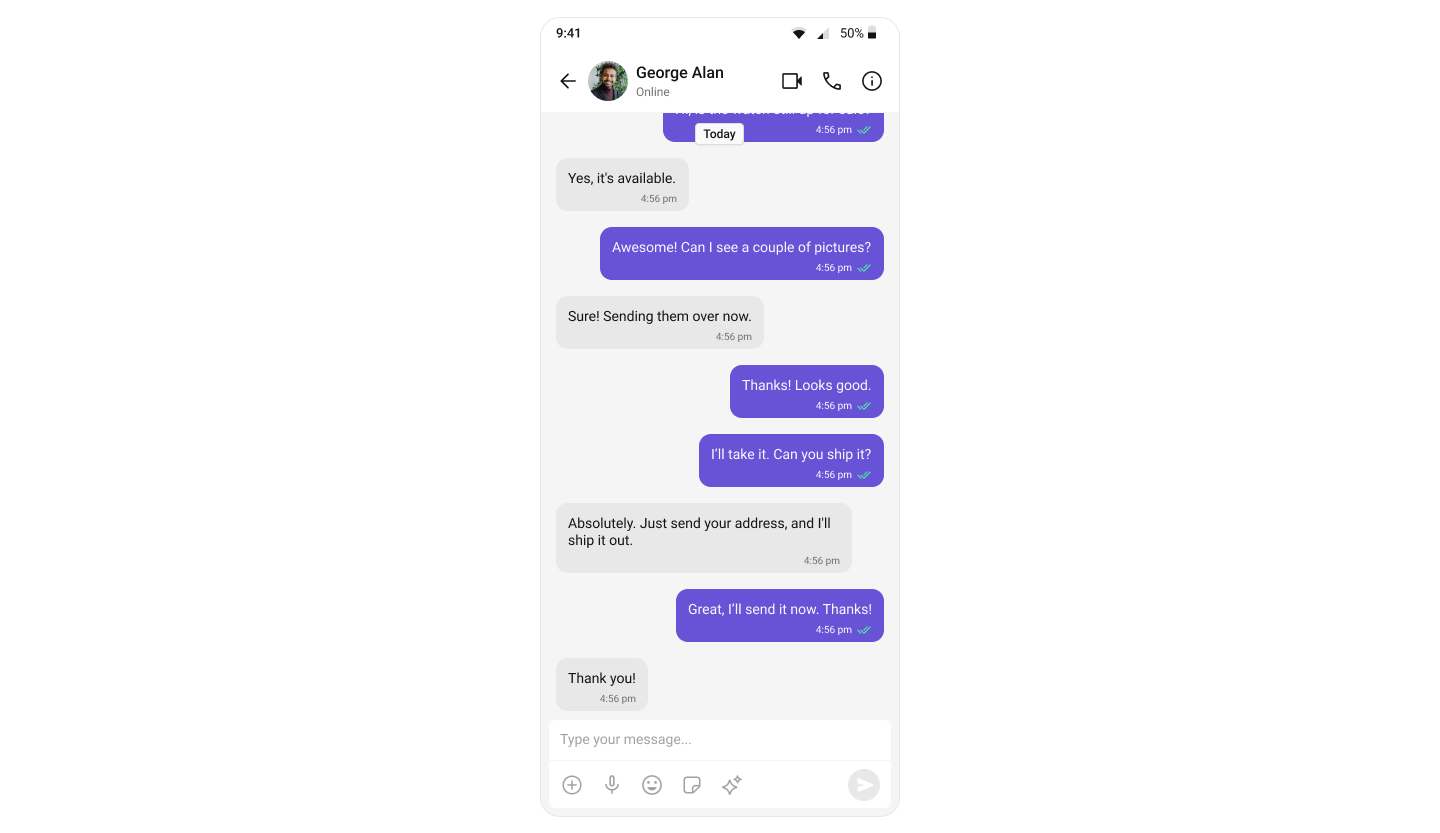
Key Components
- Chat Header – Displays user/group name, profile image, and status.
- Message List – Shows chat history and new messages.
- Message Composer – Allows users to send messages, media, and reactions.
Step-by-Step Guide
Step 1: Set Up Message Activity
Create an Activity -MessageActivity.kt to manage and display the chat UI.
Layout
Define the layout using CometChat UI Kit components:activity_message.xml
<androidx.constraintlayout.widget.ConstraintLayout
    xmlns:android="http://schemas.android.com/apk/res/android"
    xmlns:app="http://schemas.android.com/apk/res-auto"
    xmlns:tools="http://schemas.android.com/tools"
    android:id="@+id/main"
    android:layout_width="match_parent"
    android:layout_height="match_parent"
    tools:context=".MessageActivity">

    <!-- Message Header -->
    <com.cometchat.chatuikit.messageheader.CometChatMessageHeader
        android:id="@+id/message_header"
        android:layout_width="match_parent"
        android:layout_height="wrap_content"
        app:layout_constraintTop_toTopOf="parent"
        app:layout_constraintStart_toStartOf="parent"
        app:layout_constraintEnd_toEndOf="parent" />

    <!-- Message List -->
    <com.cometchat.chatuikit.messagelist.CometChatMessageList
        android:id="@+id/message_list"
        android:layout_width="0dp"
        android:layout_height="0dp"
        app:layout_constraintTop_toBottomOf="@id/message_header"
        app:layout_constraintBottom_toTopOf="@id/message_composer"
        app:layout_constraintStart_toStartOf="parent"
        app:layout_constraintEnd_toEndOf="parent" />

    <!-- Message Composer -->
    <com.cometchat.chatuikit.messagecomposer.CometChatMessageComposer
        android:id="@+id/message_composer"
        android:layout_width="match_parent"
        android:layout_height="wrap_content"
        app:layout_constraintBottom_toBottomOf="parent"
        app:layout_constraintStart_toStartOf="parent"
        app:layout_constraintEnd_toEndOf="parent" />

</androidx.constraintlayout.widget.ConstraintLayout>
Activity
- Kotlin
- Java
MessageActivity.kt
import android.os.Bundle
import android.util.Log
import android.widget.Toast
import androidx.activity.enableEdgeToEdge
import androidx.appcompat.app.AppCompatActivity
import com.cometchat.chat.core.CometChat
import com.cometchat.chat.exceptions.CometChatException
import com.cometchat.chat.models.Group
import com.cometchat.chat.models.User
import com.cometchat.chatuikit.messagecomposer.CometChatMessageComposer
import com.cometchat.chatuikit.messageheader.CometChatMessageHeader
import com.cometchat.chatuikit.messagelist.CometChatMessageList

class MessageActivity : AppCompatActivity() {
    private lateinit var messageHeader: CometChatMessageHeader
    private lateinit var messageList: CometChatMessageList
    private lateinit var messageComposer: CometChatMessageComposer

    private var uid: String? = null
    private var guid: String? = null

    private val TAG = "MessageActivity"

    override fun onCreate(savedInstanceState: Bundle?) {
        super.onCreate(savedInstanceState)
        enableEdgeToEdge()
        setContentView(R.layout.activity_message)

        initializeViews()
        setupChat()
        setupHeaderBackButton()
    }

    private fun initializeViews() {
        messageHeader = findViewById(R.id.message_header)
        messageList = findViewById(R.id.message_list)
        messageComposer = findViewById(R.id.message_composer)
    }

    private fun setupChat() {
        uid = intent.getStringExtra("uid")
        guid = intent.getStringExtra("guid")

        when {
            uid != null -> setupUserChat(uid!!)
            guid != null -> setupGroupChat(guid!!)
            else -> {
                Log.e(TAG, "No user ID or group ID provided")
                showError("Missing user ID or group ID")
                finish()
            }
        }
    }

    private fun setupUserChat(userId: String) {
        CometChat.getUser(userId, object : CometChat.CallbackListener<User>() {
            override fun onSuccess(user: User) {
                Log.d(TAG, "Successfully loaded user: ${user.uid}")
                messageHeader.setUser(user)
                messageList.setUser(user)
                messageComposer.setUser(user)
            }

            override fun onError(e: CometChatException?) {
                Log.e(TAG, "Error loading user: ${e?.message}")
                showError("Could not find user: ${e?.message}")
                finish()
            }
        })
    }

    private fun setupGroupChat(groupId: String) {
        CometChat.getGroup(groupId, object : CometChat.CallbackListener<Group>() {
            override fun onSuccess(group: Group) {
                Log.d(TAG, "Successfully loaded group: ${group.guid}")
                messageHeader.setGroup(group)
                messageList.setGroup(group)
                messageComposer.setGroup(group)
            }

            override fun onError(e: CometChatException?) {
                Log.e(TAG, "Error loading group: ${e?.message}")
                showError("Could not find group: ${e?.message}")
                finish()
            }
        })
    }

    private fun setupHeaderBackButton() {
        messageHeader.setOnBackButtonPressed {
            finish()
        }
    }

    private fun showError(message: String) {
        Toast.makeText(this, message, Toast.LENGTH_SHORT).show()
    }
}
MessageActivity.java
import android.os.Bundle;
import android.util.Log;
import android.widget.Toast;

import androidx.appcompat.app.AppCompatActivity;

import com.cometchat.chat.core.CometChat;
import com.cometchat.chat.exceptions.CometChatException;
import com.cometchat.chat.models.Group;
import com.cometchat.chat.models.User;
import com.cometchat.chatuikit.messagecomposer.CometChatMessageComposer;
import com.cometchat.chatuikit.messageheader.CometChatMessageHeader;
import com.cometchat.chatuikit.messagelist.CometChatMessageList;

public class MessageActivity extends AppCompatActivity {

    private static final String TAG = "MessageActivity";

    private CometChatMessageHeader messageHeader;
    private CometChatMessageList messageList;
    private CometChatMessageComposer messageComposer;

    private String uid;
    private String guid;

    @Override
    protected void onCreate(Bundle savedInstanceState) {
        super.onCreate(savedInstanceState);
        getWindow().setDecorFitsSystemWindows(false); // enableEdgeToEdge()
        setContentView(R.layout.activity_message);

        initializeViews();
        setupChat();
        setupHeaderBackButton();
    }

    private void initializeViews() {
        messageHeader = findViewById(R.id.message_header);
        messageList = findViewById(R.id.message_list);
        messageComposer = findViewById(R.id.message_composer);
    }

    private void setupChat() {
        uid = getIntent().getStringExtra("uid");
        guid = getIntent().getStringExtra("guid");

        if (uid != null) {
            setupUserChat(uid);
        } else if (guid != null) {
            setupGroupChat(guid);
        } else {
            Log.e(TAG, "No user ID or group ID provided");
            showError("Missing user ID or group ID");
            finish();
        }
    }

    private void setupUserChat(String userId) {
        CometChat.getUser(userId, new CometChat.CallbackListener<User>() {
            @Override
            public void onSuccess(User user) {
                Log.d(TAG, "Successfully loaded user: " + user.getUid());
                messageHeader.setUser(user);
                messageList.setUser(user);
                messageComposer.setUser(user);
            }

            @Override
            public void onError(CometChatException e) {
                Log.e(TAG, "Error loading user: " + (e != null ? e.getMessage() : "Unknown error"));
                showError("Could not find user: " + (e != null ? e.getMessage() : ""));
                finish();
            }
        });
    }

    private void setupGroupChat(String groupId) {
        CometChat.getGroup(groupId, new CometChat.CallbackListener<Group>() {
            @Override
            public void onSuccess(Group group) {
                Log.d(TAG, "Successfully loaded group: " + group.getGuid());
                messageHeader.setGroup(group);
                messageList.setGroup(group);
                messageComposer.setGroup(group);
            }

            @Override
            public void onError(CometChatException e) {
                Log.e(TAG, "Error loading group: " + (e != null ? e.getMessage() : "Unknown error"));
                showError("Could not find group: " + (e != null ? e.getMessage() : ""));
                finish();
            }
        });
    }

    private void setupHeaderBackButton() {
        messageHeader.setOnBackButtonPressed(() -> finish());
    }

    private void showError(String message) {
        Toast.makeText(this, message, Toast.LENGTH_SHORT).show();
    }
}
You must use an activity that supports the lifecycle API, such as:
AppCompatActivityComponentActivityFragmentActivity
Step 2: Update MainActivity
Update theMainActivity to navigate to the MessageActivity:
- Kotlin
- Java
MainActivity.kt
import android.os.Bundle
import android.util.Log
import androidx.activity.ComponentActivity
import androidx.activity.enableEdgeToEdge
import com.cometchat.chat.core.CometChat
import com.cometchat.chat.exceptions.CometChatException
import com.cometchat.chat.models.User
import com.cometchat.chatuikit.shared.cometchatuikit.CometChatUIKit
import com.cometchat.chatuikit.shared.cometchatuikit.UIKitSettings

class MainActivity : ComponentActivity() {

    private val TAG = "MainActivity"

    private val appID = "APP_ID" // Replace with your App ID
    private val region = "REGION" // Replace with your App Region
    private val authKey = "AUTH_KEY" // Replace with your Auth Key or leave blank if you are authenticating using Auth Token

    private val uiKitSettings = UIKitSettings.UIKitSettingsBuilder()
        .setRegion(region)
        .setAppId(appID)
        .setAuthKey(authKey)
        .subscribePresenceForAllUsers()
        .build()

    override fun onCreate(savedInstanceState: Bundle?) {
        super.onCreate(savedInstanceState)
        enableEdgeToEdge()

        CometChatUIKit.init(this, uiKitSettings, object : CometChat.CallbackListener<String?>() {
            override fun onSuccess(successString: String?) {

                Log.d(TAG, "Initialization completed successfully")

                loginUser()
            }

            override fun onError(e: CometChatException?) {}
        })
    }

    private fun loginUser() {
        CometChatUIKit.login("cometchat-uid-1", object : CometChat.CallbackListener<User>() {
            override fun onSuccess(user: User) {

                // Launch One-to-One or Group Chat Screen
                 val intent = Intent(this@MainActivity, MessageActivity::class.java)
                 intent.putExtra("uid", "cometchat-uid-1")
                 startActivity(intent)
            }

            override fun onError(e: CometChatException) {
                // Handle login failure (e.g. show error message or retry)
                Log.e("Login", "Login failed: ${e.message}")
            }
        })
    }
}
MainActivity.java
import android.content.Intent;
import android.os.Bundle;
import android.util.Log;
import androidx.activity.ComponentActivity;
import com.cometchat.chat.core.CometChat;
import com.cometchat.chat.exceptions.CometChatException;
import com.cometchat.chat.models.User;
import com.cometchat.chatuikit.shared.cometchatuikit.CometChatUIKit;
import com.cometchat.chatuikit.shared.cometchatuikit.UIKitSettings;

public class MainActivity extends ComponentActivity {

    private static final String TAG = "MainActivity";

    private final String appID = "APP_ID"; // Replace with your App ID
    private final String region = "REGION"; // Replace with your App Region
    private final String authKey = "AUTH_KEY"; // Replace with your Auth Key

    @Override
    protected void onCreate(Bundle savedInstanceState) {
        super.onCreate(savedInstanceState);
        getWindow().setDecorFitsSystemWindows(false); // Equivalent to enableEdgeToEdge()

        UIKitSettings uiKitSettings = new UIKitSettings.UIKitSettingsBuilder()
                .setRegion(region)
                .setAppId(appID)
                .setAuthKey(authKey)
                .subscribePresenceForAllUsers()
                .build();

        CometChatUIKit.init(this, uiKitSettings, new CometChat.CallbackListener<String>() {
            @Override
            public void onSuccess(String success) {
                Log.d(TAG, "Initialization completed successfully");
                loginUser();
            }

            @Override
            public void onError(CometChatException e) {
                Log.e(TAG, "Initialization failed: " + (e != null ? e.getMessage() : "Unknown error"));
            }
        });
    }

    private void loginUser() {
        CometChatUIKit.login("cometchat-uid-1", new CometChat.CallbackListener<User>() {
            @Override
            public void onSuccess(User user) {
                Log.d(TAG, "Login successful for user: " + user.getUid());

                // Launch One-to-One or Group Chat Screen
                 Intent intent = new Intent(MainActivity.this, MessageActivity.class);
                 intent.putExtra("uid", "cometchat-uid-1");
                 startActivity(intent);
            }

            @Override
            public void onError(CometChatException e) {
                Log.e("Login", "Login failed: " + (e != null ? e.getMessage() : "Unknown error"));
            }
        });
    }
}
Running the Project
Once the components are configured, build and run the app:gradle build
Application class.
Next Steps
Enhance the User Experience
- Advanced Customizations – Personalize the chat UI to align with your brand.