Integration
First, make sure that you’ve correctly integrated the UI Kit library into your project. If you haven’t done this yet or are facing difficulties, refer to our Getting Started guide. This guide will walk you through a step-by-step process of integrating our UI Kit into your React Native project. Once you’ve successfully integrated the UI Kit, the next step is to add the CometChat Calls SDK to your project. This is necessary to enable the calling features in the UI Kit. Here’s how you do it:- Bash
- iOS
- Android
Add necessary permissions
Android:
Go to AndroidManifest.xml located in the react-native/app/src/main of your React Native project and add the following permissions:- AndroidManifest.xml
iOS:
Open Info.plist located in the ios/{appname} of your React Native project and add the following entries:- info.plist
Setup minimum Android and iOS versions
For Android go to app-level build.gradle and change minSdkVersion to 24 and the targetSdkVersion and compileSdkVersion to 33.- Gradle
- Podfile
Add the Call Listeners
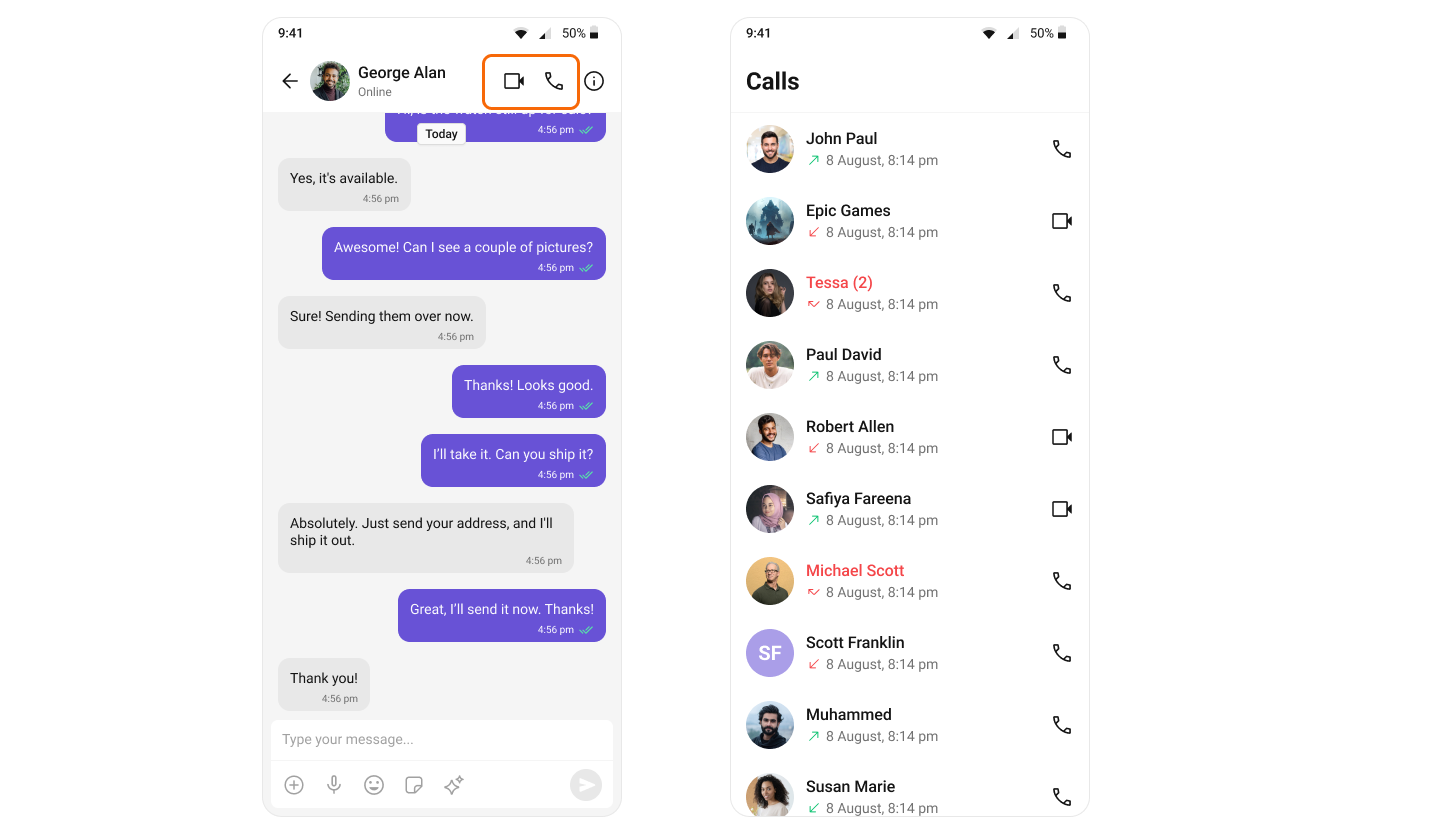
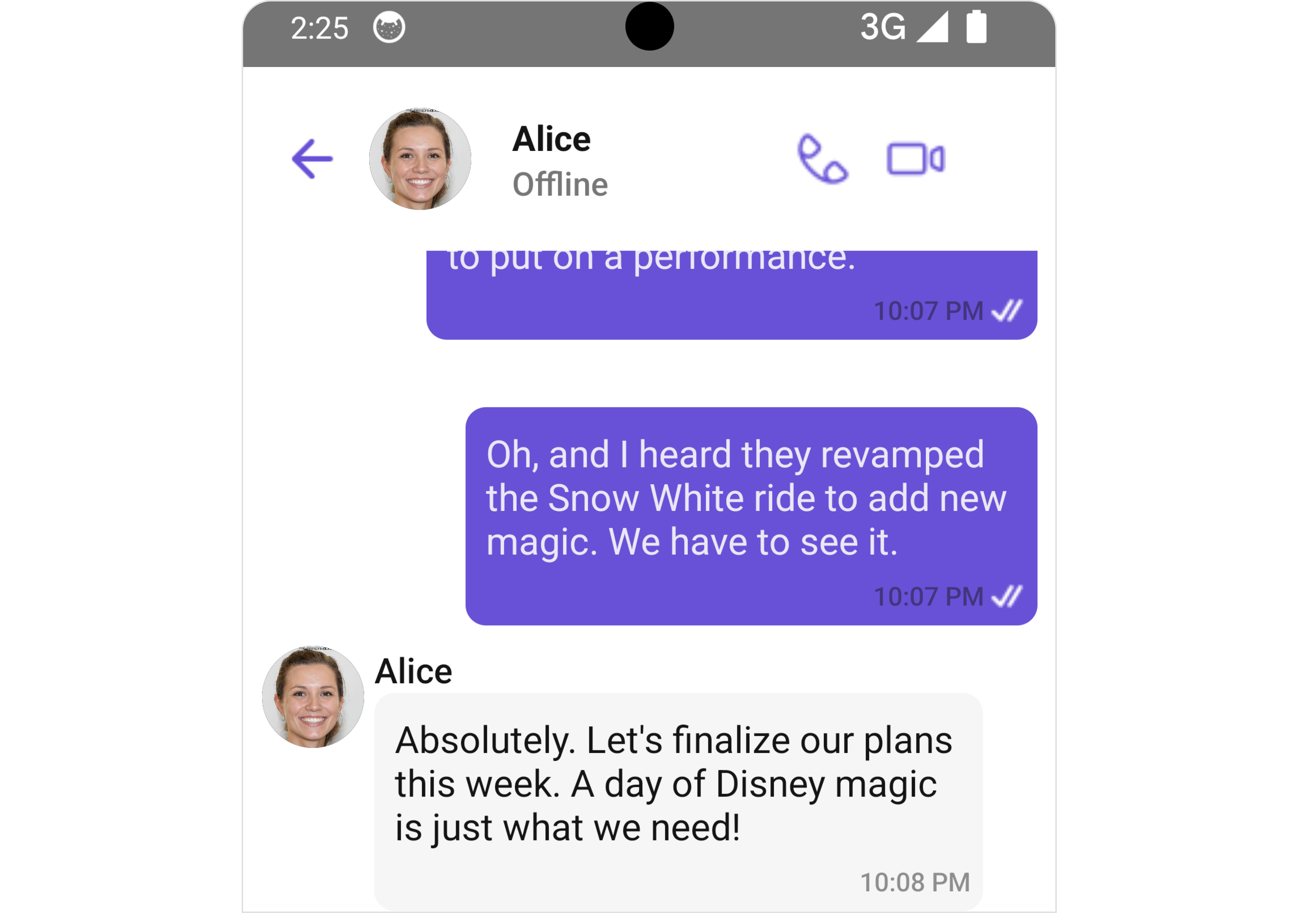
In addition to CallButtons, the Calls UI Kit offers fully functional UI components for handling Incoming, Outgoing, and Ongoing calls. To receive call events in your desired component or screen, you must register a call listener using the addCallListener() method. The onIncomingCallReceived() event is triggered whenever an incoming call is received.- Bash
Features
Incoming Call
The Incoming Call component of the CometChat UI Kit provides the functionality that lets users receive real-time audio and video calls in the app. When a call is made to a user, the Incoming Call component triggers and displays a call screen. This call screen typically displays the caller information and provides the user with options to either accept or reject the incoming call.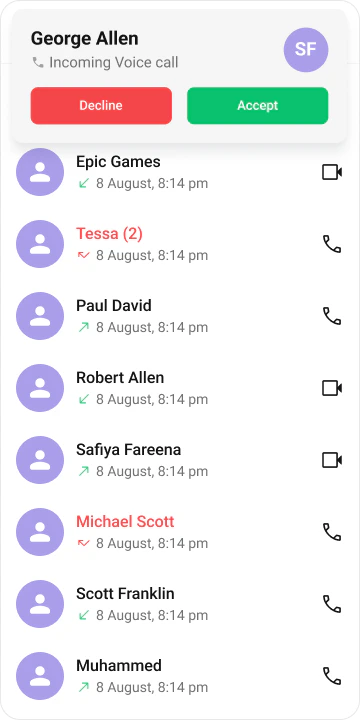
Outgoing Call
The Outgoing Call component of the CometChat UI Kit is designed to manage the outgoing call process within your application. When a user initiates an audio or video call to another user or group, this component displays an outgoing call screen, showcasing information about the recipient and the call status. Importantly, the Outgoing Call component is smartly designed to transition automatically into the ongoing call screen once the receiver accepts the call. This ensures a smooth flow from initiating the call to engaging in a conversation, without any additional steps required from the user.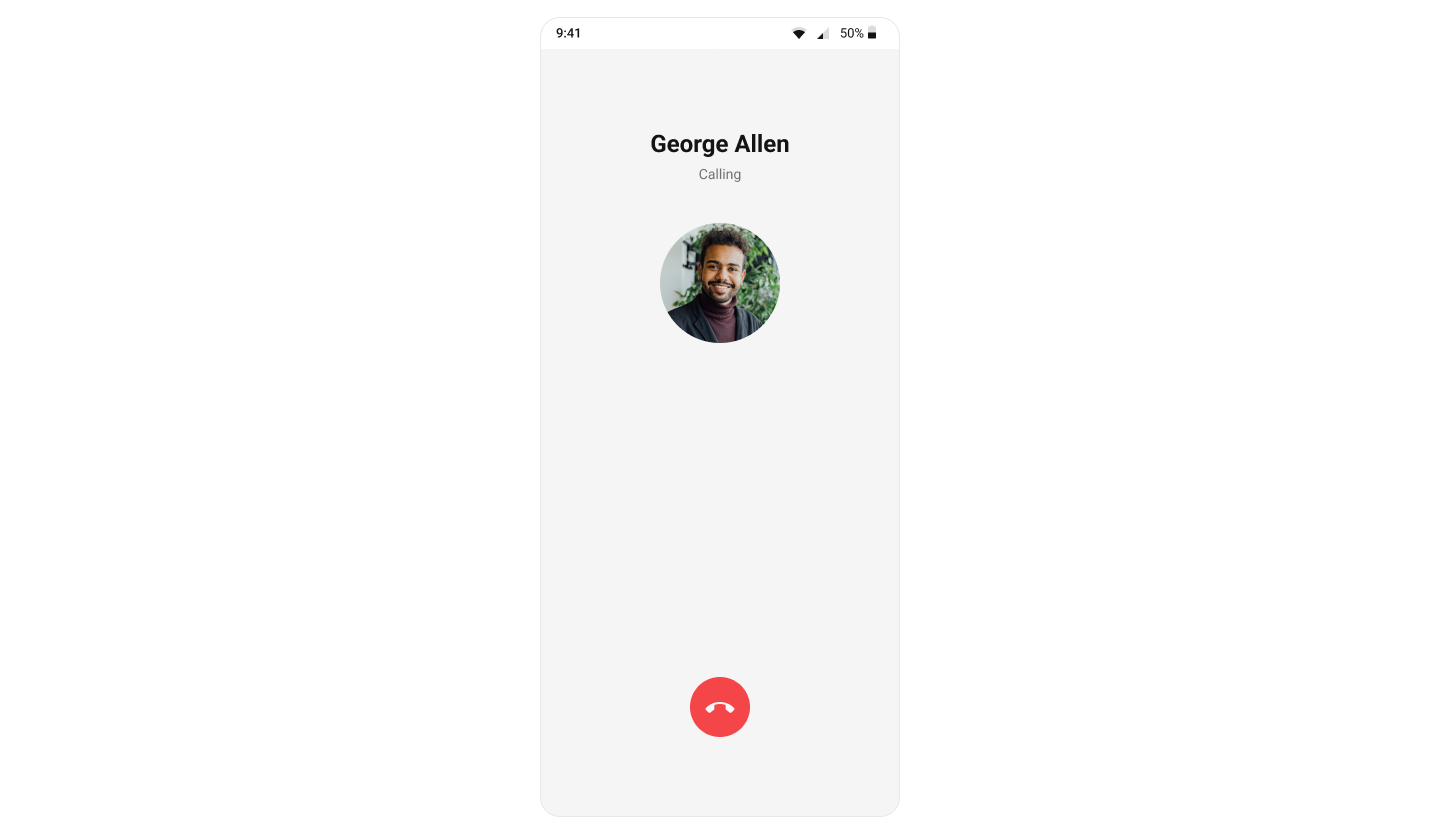
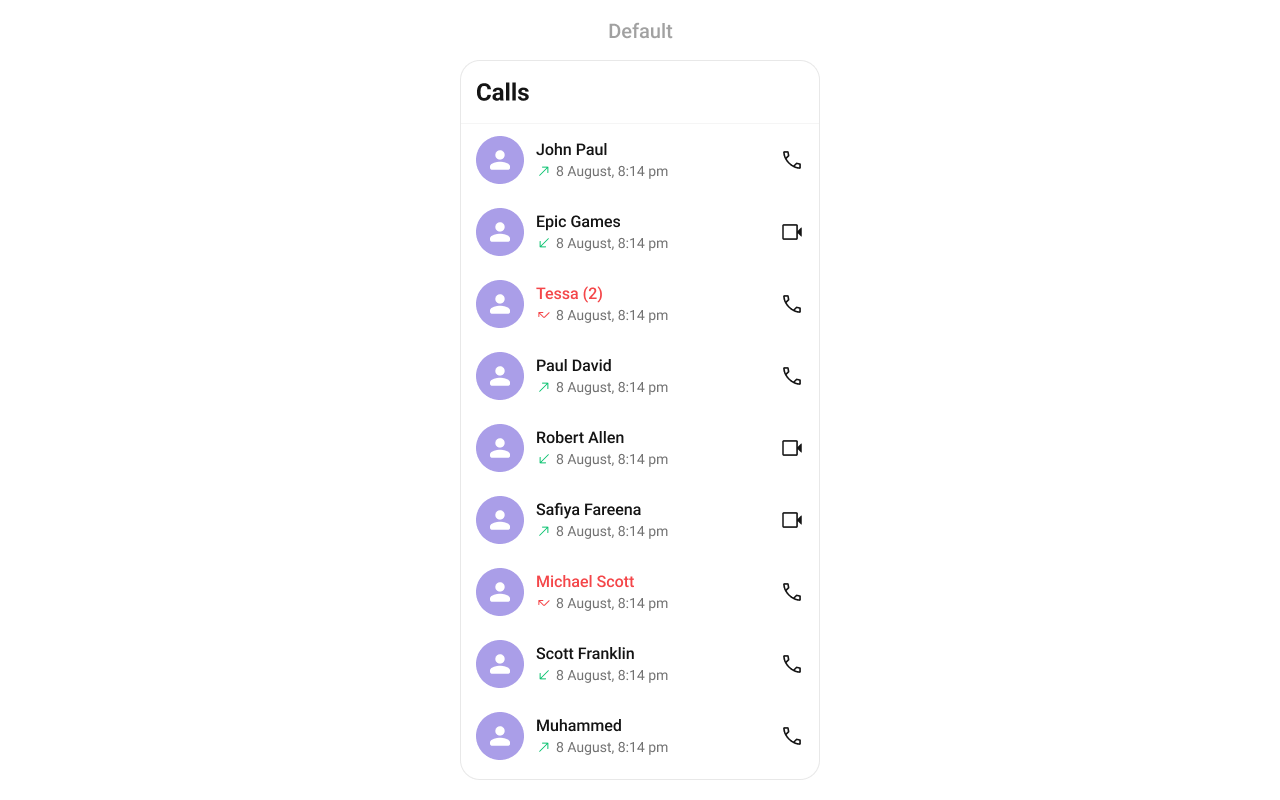
Call Logs
Call Logs component provides you with the records call events such as who called who, the time of the call, and the duration of the call. This information can be fetched from the CometChat server and displayed in a structured format for users to view their past call activities.