

Overview
The Conversations is a Component, That shows all conversations related to the currently logged-in user,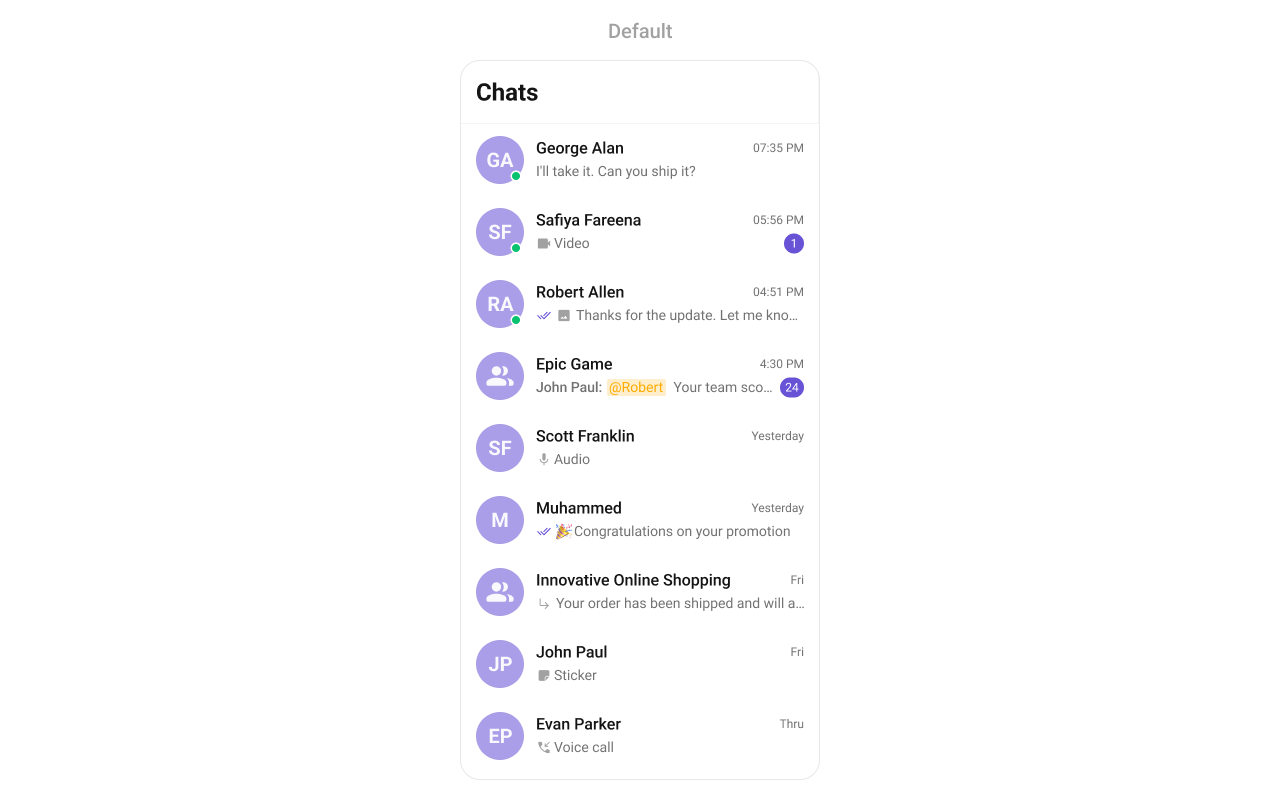
Usage
Integration
There are multiple ways in which you can use Conversations in your app. Layout File: To use Conversations in your `layout_activity.xml, use the following code snippet.layout_activity.xml
- Activity: To use Conversations in your Activity, use the following code snippet.
- Java
- Kotlin
YourActivity.java
- Fragment: To use
Conversationsin yourFragment, use the following code snippet.
- Java
- Kotlin
YourFragment.java
Actions
Actions dictate how a component functions. They are divided into two types: Predefined and User-defined. You can override either type, allowing you to tailor the behavior of the component to fit your specific needs.setOnItemClick
Function invoked when a conversation item is clicked, typically used to open a detailed chat screen.- Java
- Kotlin
YourActivity.java
setOnItemLongClick
Function executed when a conversation item is long-pressed, allowing additional actions like delete or select.- Java
- Kotlin
YourActivity.java
setOnBackPressListener
OnBackPressListener is triggered when you press the back button in the app bar. It has a predefined behavior; when clicked, it navigates to the previous activity. However, you can override this action using the following code snippet.
- Java
- Kotlin
YourActivity.java
setOnSearchClickListener
setOnSearchClickListener is triggered when you click the search bar. It has a predefined behavior; when clicked, it opens the search screen. However, you can override this action using the following code snippet.
- Java
- Kotlin
YourActivity.java
setOnSelect
Called when a item from the fetched list is selected, useful for multi-selection features.- Java
- Kotlin
YourActivity.java
OnError
This action doesn’t change the behavior of the component but rather listens for any errors that occur in the Conversations component.- Java
- Kotlin
YourActivity.java
setOnLoad
Invoked when the list is successfully fetched and loaded, helping track component readiness.- Java
- Kotlin
YourActivity.java
setOnEmpty
Called when the list is empty, enabling custom handling such as showing a placeholder message.- Java
- Kotlin
YourActivity.java
Filters
You can setConversationsRequestBuilder in the Conversations Component to filter the conversation list. You can modify the builder as per your specific requirements with multiple options available to know more refer to ConversationRequestBuilder.
You can set filters using the following parameters.
- Conversation Type: Filters on type of Conversation,
UserorGroups - Limit: Number of conversations fetched in a single request.
- WithTags: Filter on fetching conversations containing tags
- Tags: Filters on specific
Tag - UserTags: Filters on specific User
Tag - GroupTags: Filters on specific Group
Tag
- Java
- Kotlin
YourActivity.java
Events
Events are emitted by aComponent. By using event you can extend existing functionality. Being global events, they can be applied in Multiple Locations and are capable of being Added or Removed.
1. ConversationDeleted
This event will be emitted when the user deletes a conversation- Java
- Kotlin
Add Listener
Customization
To fit your app’s design requirements, you can customize the appearance of the conversation component. We provide exposed methods that allow you to modify the experience and behavior according to your specific needs.Style
Using Style you can customize the look and feel of the component in your app, These parameters typically control elements such as the color, size, shape, and fonts used within the component.setStyle
You can set the styling object to theCometChatConversations Component to customize the styling.
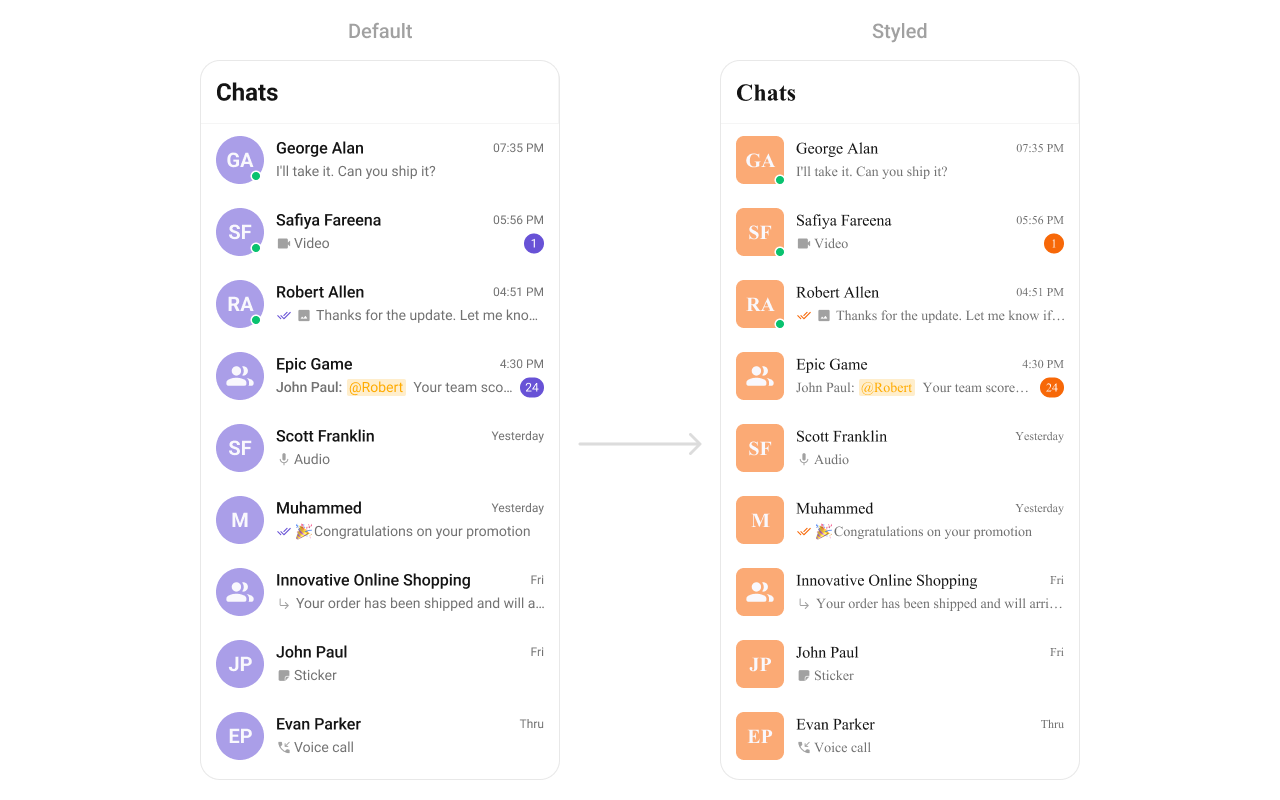
themes.xml
- Java
- Kotlin
Functionality
These are a set of small functional customizations that allow you to fine-tune the overall experience of the component. With these, you can change text, set custom icons, and toggle the visibility of UI elements. Below is a list of customizations along with corresponding code snippetsAdvanced
For advanced-level customization, you can set custom views to the component. This lets you tailor each aspect of the component to fit your exact needs and application aesthetics. You can create and define your views, layouts, and UI elements and then incorporate those into the component.setDateTimeFormatter
By providing a custom implementation of the DateTimeFormatterCallback, you can configure how time and date values are displayed. This ensures consistent formatting for labels such as “Today”, “Yesterday”, “X minutes ago”, and more. Each method in the interface corresponds to a specific case:time(long timestamp) → Custom full timestamp format
today(long timestamp) → Called when a message is from today
yesterday(long timestamp) → Called for yesterday’s messages
lastWeek(long timestamp) → Messages from the past week
otherDays(long timestamp) → Older messages
minute(long timestamp) / hour(long timestamp) → Exact time unit
minutes(long diffInMinutesFromNow, long timestamp) → e.g., “5 minutes ago”
hours(long diffInHourFromNow, long timestamp) → e.g., “2 hours ago”
- Java
- Kotlin
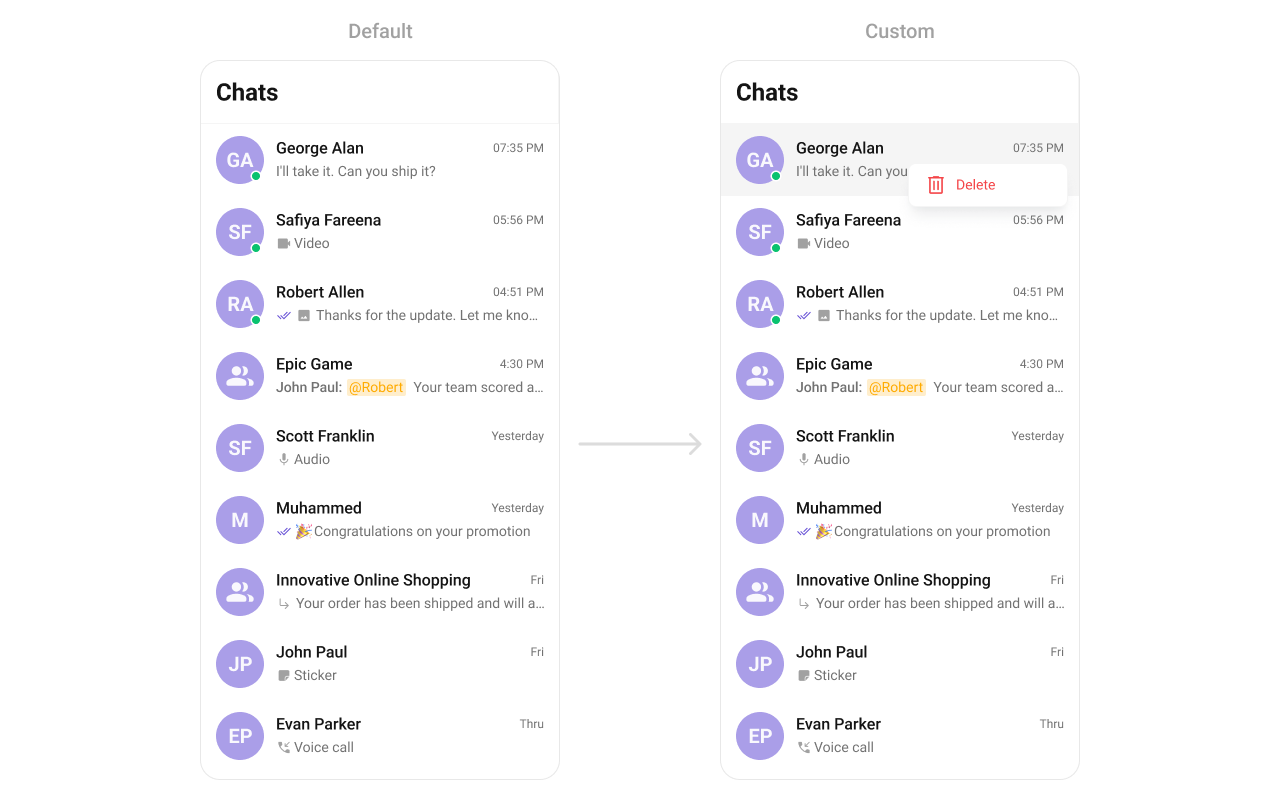
setOptions
This method sets a predefined list of actions that users can perform when they long press a conversation in the list. These options typically include:- Deleting a conversation
- Marking a conversation as read or unread
- Pinning or unpinning a conversation
- Muting notifications for a specific conversation
- Java
- Kotlin
- Java
- Kotlin
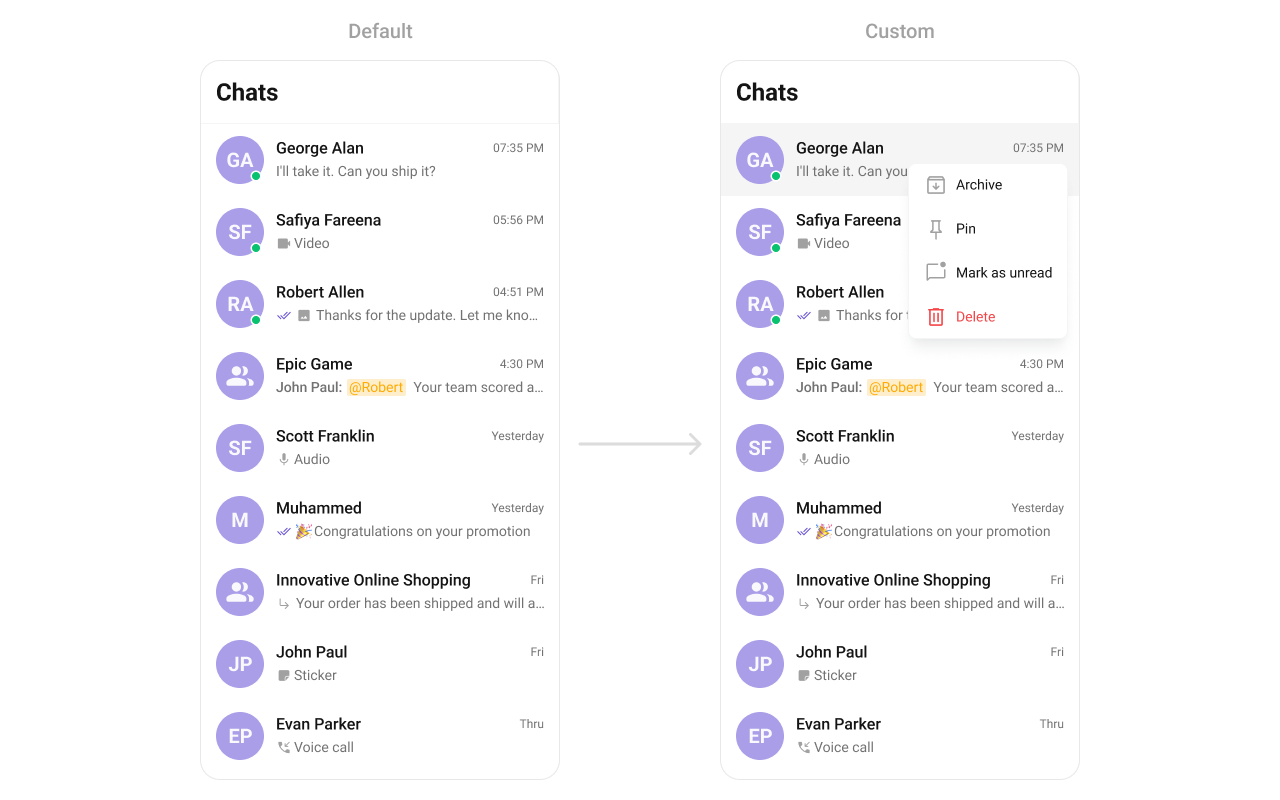
addOptions
This method extends the existing set of actions available when users long press a conversation item. Unlike setOptionsDefines, which replaces the default options, addOptionsAdds allows developers to append additional actions without removing the default ones. Example use cases include:- Adding a “Report Spam” action
- Introducing a “Save to Notes” option
- Integrating third-party actions such as “Share to Cloud Storage”
- Java
- Kotlin
- Java
- Kotlin
setLoadingView
This method allows developers to set a custom loading view that is displayed when data is being fetched or loaded within the component. Instead of using a default loading spinner, a custom animation, progress bar, or branded loading screen can be displayed. Use cases:- Showing a skeleton loader for conversations while data loads
- Displaying a custom progress indicator with branding
- Providing an animated loading experience for a more engaging UI
- Java
- Kotlin
setEmptyView
Configures a custom view to be displayed when there are no conversations or messages in the list. This improves the user experience by providing meaningful content instead of an empty screen. Examples:- Displaying a message like “No conversations yet. Start a new chat!”
- Showing an illustration or animation to make the UI visually appealing
- Providing a button to start a new conversation
- Java
- Kotlin
setErrorView
Defines a custom error state view that appears when an issue occurs while loading conversations or messages. This enhances the user experience by displaying friendly error messages instead of generic system errors. Common use cases:- Showing “Something went wrong. Please try again.” with a retry button
- Displaying a connection issue message if the user is offline
- Providing troubleshooting steps for the error
- Java
- Kotlin
setLeadingView
Allows setting a custom leading view element that appears at the beginning of each conversation item. This is typically used to modify profile pictures, avatars, or icons in the conversation list. Examples:- Displaying user avatars with online/offline status indicators
- Using initials or custom graphics instead of images
- Java
- Kotlin

drawable/chat_dots.xml
leading_view.xml as a custom layout file. Which we will inflate in setLeadingView()
setLeadingView you need to inflate the XML and initialize the views using the conversation objects.
- Java
- Kotlin
setTitleView
Overrides the default title view in the conversation list with a custom layout. This is useful for branding or modifying how conversation names and details are displayed. Examples:- Displaying conversation titles with additional metadata (e.g., last seen time)
- Custom fonts or text styles for conversation names
- Adding icons or indicators next to titles
- Java
- Kotlin
custom_title_view.xml as a custom layout file. Which we will inflate in setTitleView()
setTitleView you need to inflate the XML and initialize the views using the conversation objects.
- Java
- Kotlin
setTrailingView
Customizes the trailing (end) view of a conversation item, which is typically used for action buttons or additional information. Examples:- Adding a mute/unmute button for each conversation
- Displaying the last message time in a custom format
- Showing unread message counts or notification badges
custom_tail_view.xml as a custom layout file. Which we will inflate in setTrailingView()
setTrailingView you need to inflate the XML and initialize the views using the conversation objects.
- Java
- Kotlin

- Java
- Kotlin
setItemView
This function allows developers to assign a completely custom list item design to the Conversations Component, replacing the default layout. Use cases:- Implementing a unique conversation list design with custom styling
- Adding extra elements like swipe gestures, priority indicators, or group labels
- Fully customizing how messages are displayed in the list
- Java
- Kotlin
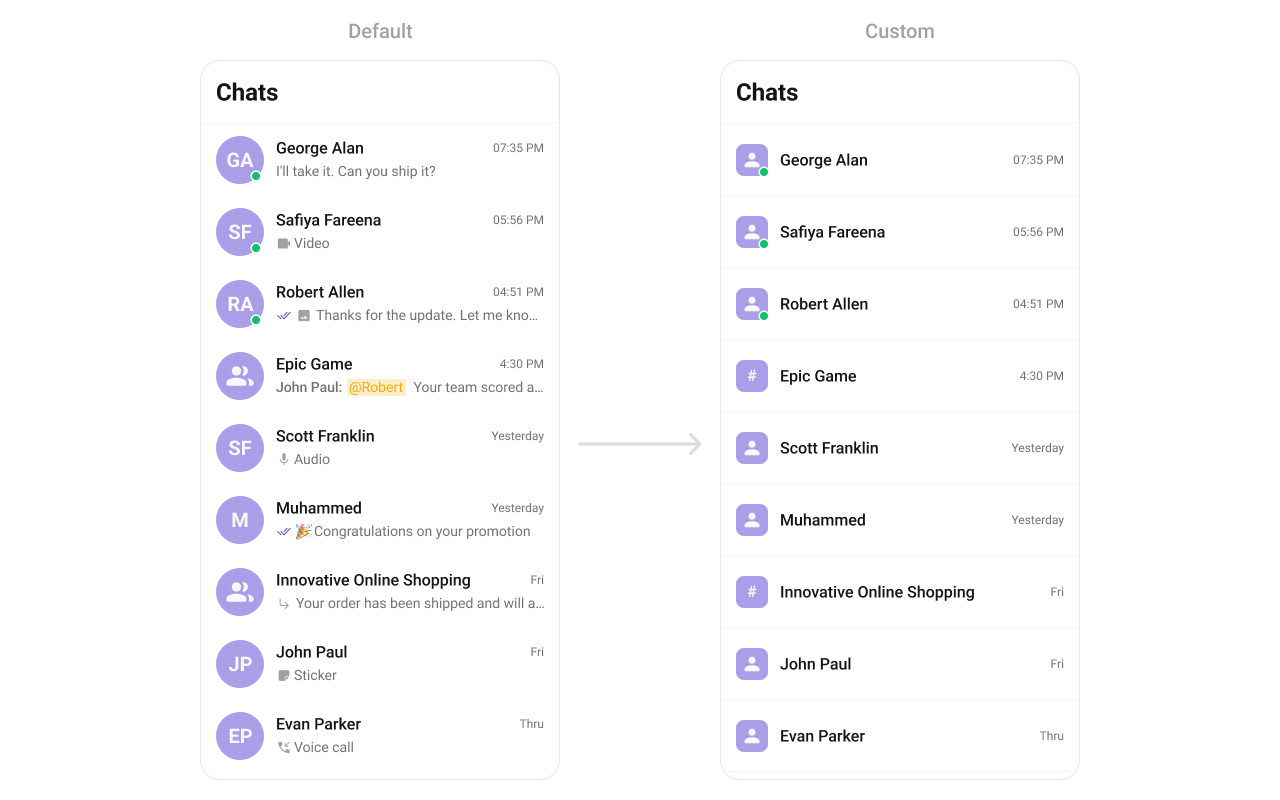
item_converation_list.xml as a custom layout file. Which we will inflate in setListItemView()
setItemView you need to inflate the XML and initialize the views using the conversation objects.
- Java
- Kotlin
YourActivity.java
setTextFormatters
This method enables developers to define and apply text formatters that dynamically modify or transform message content before rendering it in the UI. Text formatters can be used for purposes such as:- Automatically converting URLs into clickable links
- Applying Markdown or rich text styling
- Replacing certain words or patterns with emojis or predefined text
- Censoring specific words for moderation
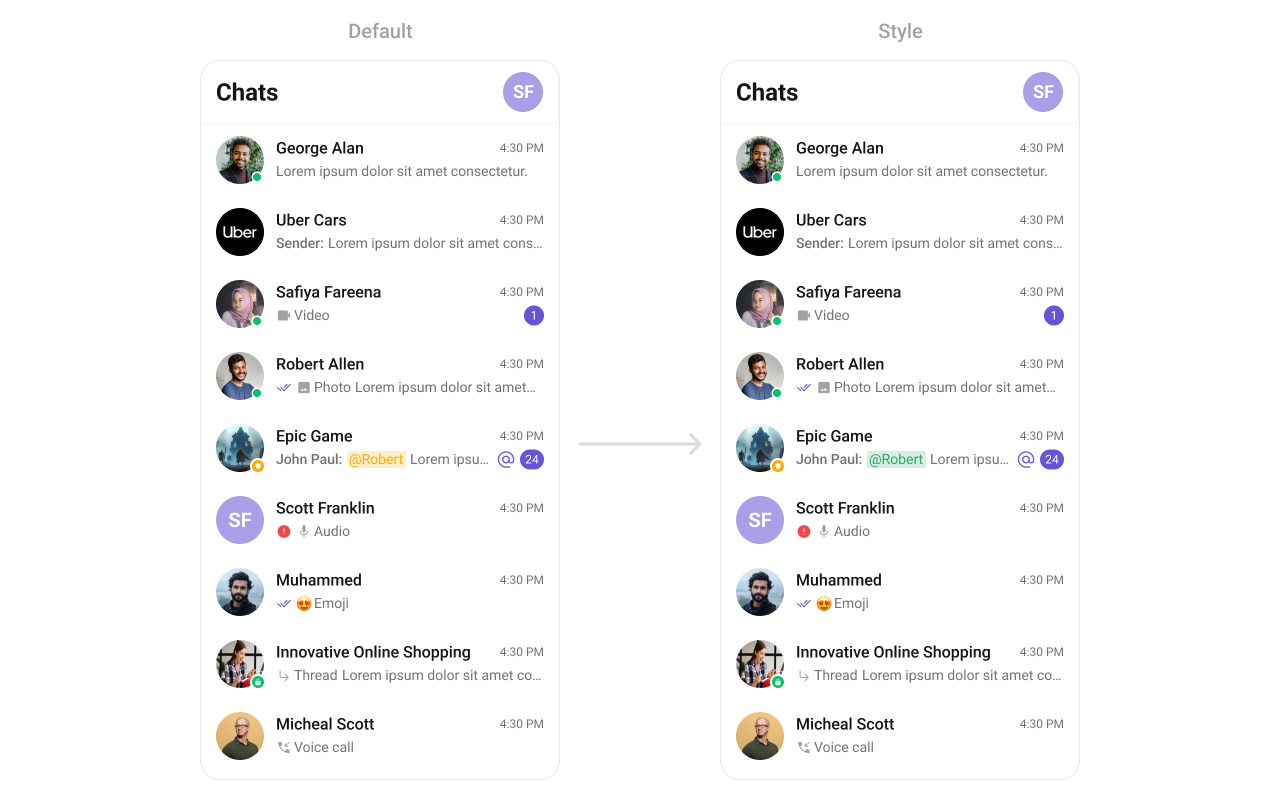
themes.xml
- Java
- Kotlin
setOverflowMenu
The setOverflowMenu method allows developers to customize the overflow menu within the Conversations component. This menu typically appears as a three-dot (⋮) or hamburger icon and provides users with additional options beyond those displayed in the main UI. Use Cases:- Archive Chat
- Mark All as Read
- Delete Conversations
- Java
- Kotlin
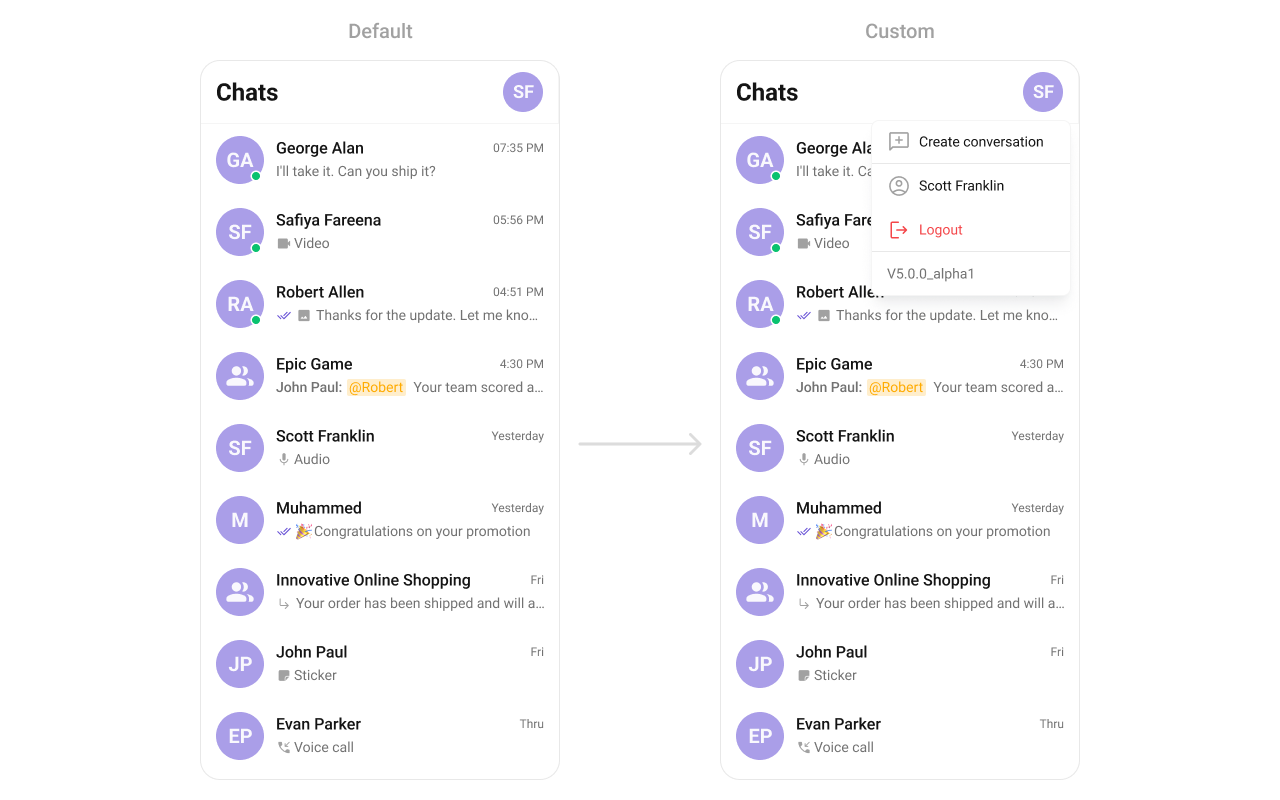
view_menu.xml as a custom view file. Which we will inflate and pass it to .setMenu.
user_profile_popup_menu_layout.xml
setMenu. You can get the child view reference and can handle click actions.
- Java
- Kotlin
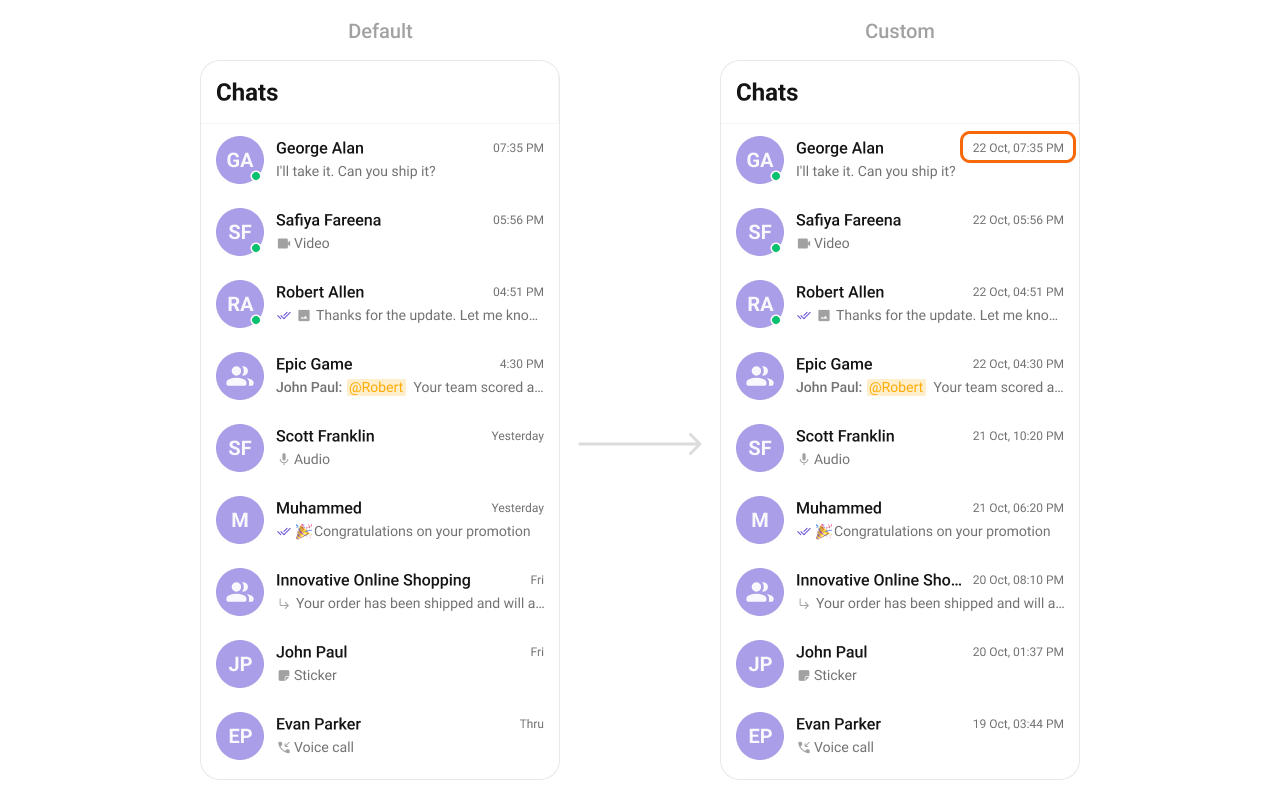
setDateFormat
This method customizes the date format used for displaying timestamps in conversations or chat components. Developers can specify formats such as:- dd/MM/yyyy HH:mm → Example: 10/07/2024 14:30
- MMM dd, yyyy → Example: Jul 10, 2024
- hh:mm a → Example: 02:30 PM
- Java
- Kotlin
- Java
- Kotlin
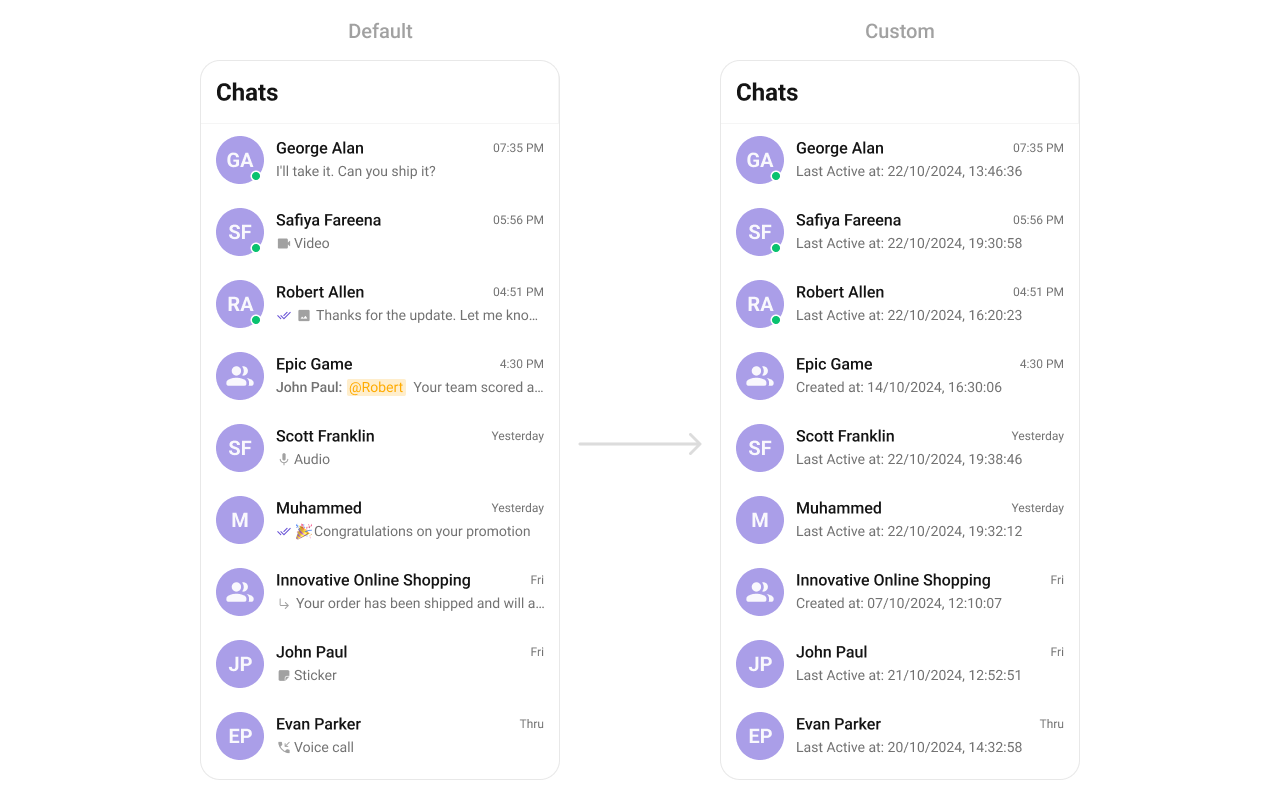
setSubtitleView
The setSubtitleView method allows developers to customize the subtitle view of each conversation item in the list. The subtitle typically displays additional information below the conversation title, such as the last message, message status, or other relevant details. Use Cases:- Customizing the Last Message Display – Modify how the last message appears, including text styling, truncation, or emoji support.
- Message Status Indicators – Show message status (e.g., Sent, Delivered, Read) alongside the last message.
- Typing Indicators – Display “User is typing…” in real time.
- Java
- Kotlin
- Java
- Kotlin
YourActivity.java